Photon Wallet: How Deposits, Withdrawals and Private Key Export Work (2026)
Table of Contents
The Photon wallet is a Solana wallet that Photon generates for your account. You hold its private key, which Photon shows you once at signup behind a reveal slider. You fund it by sending SOL to its address or through the built-in MoonPay option, move funds between your wallets from the Wallets page, and send anywhere else by importing the key into Phantom.
Everything below comes from Photon's own documentation and screenshots, and the sources list at the bottom says when we read each page. If you have not signed up yet, the full trading walkthrough covers the account setup step by step.
Disclosure: PhotonGuides may earn a referral commission if you sign up through our link. It costs you nothing extra, and Photon publishes no referral discount.
Photon never holds a copy of your access that it can give back to you. The private key is the account. Save it at signup, and every other mistake on this page is fixable.
What kind of wallet does Photon give you?
When you sign up on Photon's Solana app, it creates a wallet for your account rather than asking you to plug in one you already own. That is the opposite of most  Solana DEX front ends, where you connect
 Phantom and sign each trade in a pop-up.
The difference matters for two reasons. First, trades sign inside the terminal, so there is no wallet pop-up between you and the buy button. Second, the key that controls the wallet exists in your hands from the first minute, and Photon's Terms of Use put the responsibility squarely on you: you are "solely responsible for maintaining the security of your account and control over any usernames, passwords, public and/or private keys."
The same Terms say the company "has no way of granting you access to the site if you lose access to, or control of, your Wallet." There is no reset email and no support process for a lost key. Our Photon safety guide covers what that self-custody model protects you from and what it does not, so this page sticks to the mechanics.

Source: Photon documentation, Mobile Traders - Sign Up, used under fair use for educational purposes
The slider exists so the key never appears by accident. Drag it, copy the key, and put it in a password manager before you click anything else. Do not screenshot it, because phone photos sync to cloud storage by default.
How do you deposit SOL into Photon?
There are two documented ways in, and one way to spread funds once they arrive.
Send SOL to the wallet address. Copy your Photon wallet address and use it as the destination when you withdraw from an exchange or send from another wallet. Check that the transfer is on the Solana network. On a new address, send a small amount first and confirm it lands before sending the rest.
Use MoonPay. Photon's Deposit tab includes a "Deposit with MoonPay" option, which Photon's Multi-Wallet documentation describes as "one of our on-ramp partners" for topping up your balance. The documentation screenshot shows Apple Pay, Google Pay, Mastercard, Visa and PayPal logos beside it.  MoonPay sets its own pricing for card purchases, so treat it as the convenient route, not the cheap one.
Split across your trading wallets. Photon lets you run up to five active wallets. The Deposit tab on the Wallets page sends SOL from your sign-up wallet into the others, either split evenly or as a specific amount per wallet, with a priority fee field you can adjust.
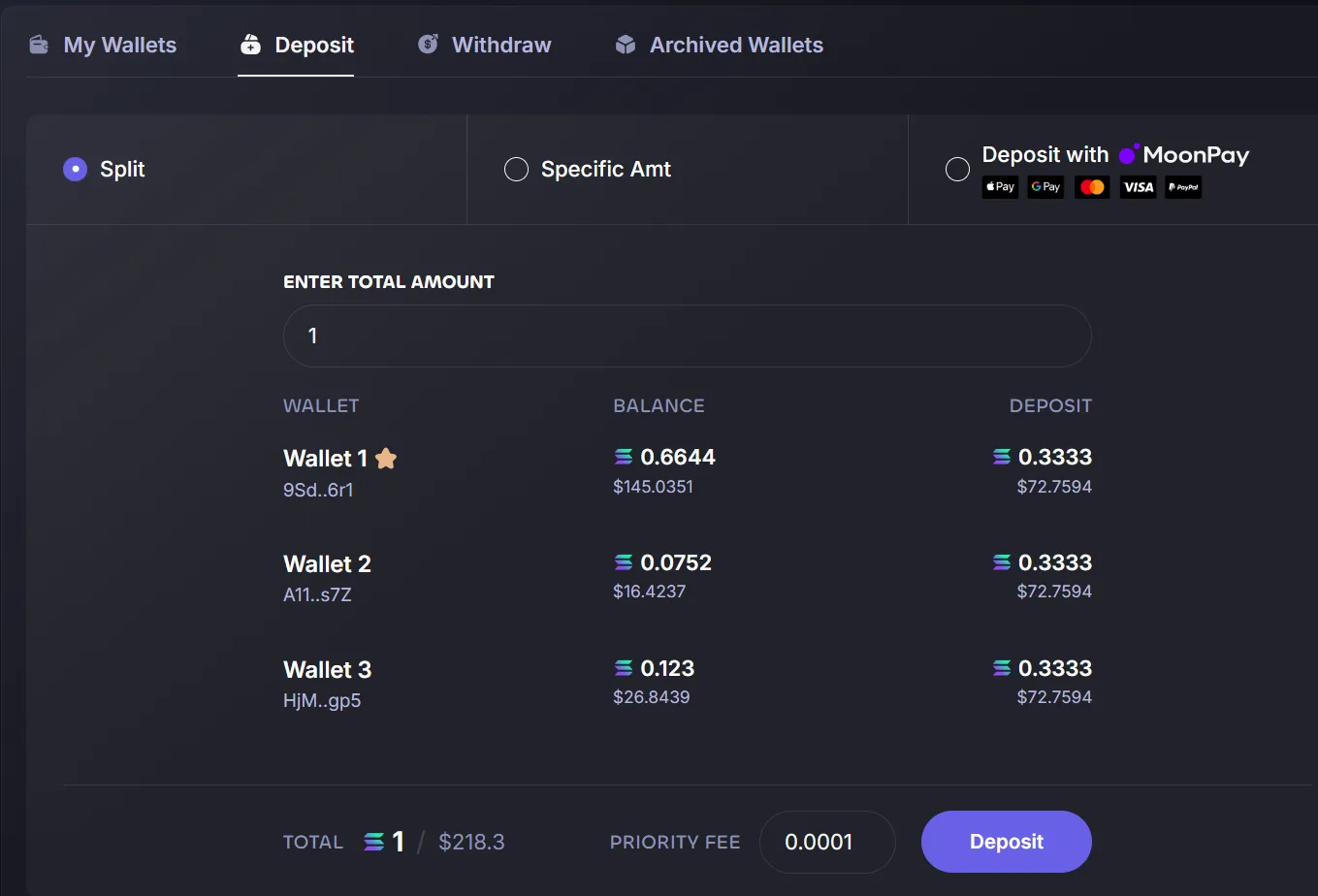
Source: Photon documentation, Multi-Wallet, used under fair use for educational purposes
Fund for fees, not just trades
Every buy and sell pays the Solana network fee, your priority fee, your Jito bribe and Photon's flat 1% from the wallet that signs it. A wallet emptied by one big buy cannot pay to sell. Keep a SOL buffer in every wallet you trade from, because each of the five needs its own.
Set up the wallet on the real domain
Open Photon through photon-sol.tinyastro.io, save the key when the slider appears, and send a small test deposit before the rest. Our link adds no surcharge and no discount.
Open PhotonHow do withdrawals work on Photon?
The Withdraw tab moves SOL, or any token, from one of your wallets to another. Photon's documentation walks through it like this:
Choose the wallet to withdraw from
Pick it from the Withdraw From list.
Pick SOL or a token
For a token, paste its contract address into the input field and click Fetch.
Enter the amount
Leave 0.0025 SOL plus the priority fee behind, as the screen asks.
Choose the destination
Pick the receiving wallet from the Withdraw To list.
Click Withdraw
Then confirm the result in My Holdings or on a Solana explorer.
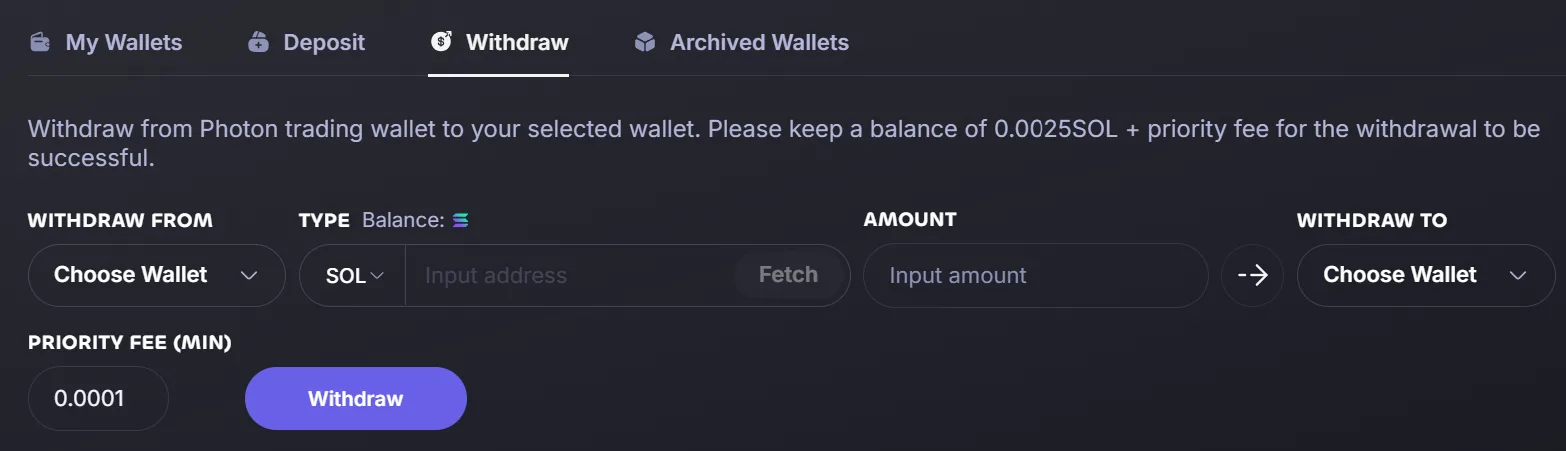
Source: Photon documentation, Multi-Wallet, used under fair use for educational purposes
Two details on that screen trip people up.
The 0.0025 SOL buffer. The Withdraw screen in Photon's documentation says to "keep a balance of 0.0025SOL + priority fee for the withdrawal to be successful." Type in your full balance and the withdrawal has nothing left to pay for itself. That is the most likely reason a withdrawal fails on the first try. The figure comes from a documentation screenshot, so check what your own screen says before relying on it.
The destination is a wallet picker. Both ends of the form are "Choose Wallet" menus, and the documentation describes the tab as sending "from one wallet to another." It does not document pasting an outside address such as an exchange deposit address. For that, Photon's own mobile guide gives the route: import the key into Phantom, which the next section covers. Photon's mobile sign-up page is blunt about it, saying you "must complete this step in order to transfer SOL or other coins in/out of your Photon trading wallet."
On fees: Photon's documentation lists its 1% on buys and sells and documents no withdrawal fee. A withdrawal still pays the Solana network fee and the priority fee from the form, and both go to the network.
To retire a wallet you no longer use, open My Wallets and click Archive. The documentation says unarchiving needs a 30-second wait.
Never withdraw the full balance. Leave the 0.0025 SOL plus priority fee that Photon's own Withdraw screen asks for, and the transfer has what it needs to go through.
How do you export the private key to Phantom?
Exporting is how you take the Photon wallet anywhere else. Phantom then controls the same address and the same balance, so it can send SOL or tokens to an exchange, a hardware wallet, or another app. Photon documents the steps for its mobile traders, and they apply to anyone who wants the wallet in Phantom:
- Reveal and copy the key with the slider shown above.
- Open Phantom and select the Wallet tab.
- Tap the drop-down menu to reach the account selection screen.
- Tap Add/Connect Wallet at the bottom of the screen.
- Choose Import Private Key.
- Paste the key, give the wallet a name and tap Import.
The Photon wallet now appears as an account in Phantom. Photon's mobile guide also recommends opening Photon inside Phantom's in-app browser on a phone, since there is no native Photon app. On a desktop, the Mobile Login button shows a QR code and a 4-digit PIN that signs your phone into the same account.
Import carries a cost worth weighing. Every app that holds the key is another place it can leak from. If you import it into Phantom, protect that device the way you protect the key itself, and never paste the key into a website that asks for it. A documented fake Photon site copies the real interface to drain wallets, which is why our security section tells you to type the domain yourself.
Keep the key, keep the wallet
Open Photon on photon-sol.tinyastro.io, save the private key once, and import it into Phantom when you need to move funds out.
Open PhotonWhen a deposit or withdrawal goes wrong
Most problems trace back to three causes, all covered in more depth on our failed transactions guide.
- Not enough SOL left for fees. The withdrawal buffer above, or a trading wallet run to zero. See the not-enough-SOL section.
- "Transaction executing" that seems stuck. Photon's FAQ explains that it keeps resubmitting a transaction until it confirms, and warns that if you try again, "there's a chance that both of your transactions will get confirmed." Wait, then check the wallet on a Solana explorer. More in the executing section.
- A deposit that never showed up. Look up the transfer signature, compare it with the address in your Photon wallet, and confirm you were on the real domain when you copied it. The deposit section walks through it.
My Holdings is the place to check balances across every wallet at once. It shows what you invested, what remains, what you sold and the change in P&L per token, and it can expand a token to show which of your wallets holds it.
Sources
Every claim on this page was read from Photon's own documentation on 2026-10-27:
- Multi-Wallet: the five-wallet limit, the Deposit and Withdraw tabs, the MoonPay option, archiving, and the two screenshots above, including the 0.0025 SOL withdrawal note.
- Mobile Traders - Sign Up: the key reveal slider and the six-step Phantom import.
- Mobile Login: the QR code and 4-digit PIN.
- FAQ: the "transaction executing" behavior.
- My Holdings: the fields on the holdings view.
- Photon fees - SOL: the 1% on buys and sells.
- Terms of Use: the custody and lost-access quotes.
The screenshots come from Photon's documentation, not from a funded account, and Photon does not date them. Where the documentation is silent, as on withdrawal minimums beyond that one screen note, this page says nothing rather than guessing. More on how we work is on our about page.
Quoting a figure? Cite this pageShowHide
The steps on this page are free to quote. Copy the citation or the link below.
Plain-text citation
PhotonGuides. "Photon Wallet: How Deposits, Withdrawals and Private Key Export Work (2026)." Published October 27, 2026, updated October 27, 2026. https://photonguides.com/guides/getting-started/photon-walletHTML link
<a href="https://photonguides.com/guides/getting-started/photon-wallet">Photon Wallet: How Deposits, Withdrawals and Private Key Export Work (2026), PhotonGuides</a>The five-wallet limit, the 0.0025 SOL withdrawal buffer and the deposit and withdrawal steps come from Photon's own documentation. Individual sections can be deep-linked: #what-kind-of-wallet-does-photon-give-you, #how-do-you-deposit-sol-into-photon, #how-do-withdrawals-work-on-photon and #how-do-you-export-the-private-key-to-phantom. They were read from the Photon Multi-Wallet documentation on . Photon can change its wallet screens and documentation at any time, so check the live page before relying on a specific value. Our methodology page sets out how every claim on this site is sourced.
You may quote this page with attribution and a link to https://photonguides.com/guides/getting-started/photon-wallet.
Frequently Asked Questions
No. Photon generates a dedicated Solana wallet for your account and shows you its private key behind a reveal slider at signup. You save the key yourself. Photon's Terms of Use say the company has no way of granting you access if you lose control of your wallet, so a lost key cannot be recovered by support.
Photon's Solana documentation describes no way to trade from an outside wallet you connect. You trade from the wallet Photon generates. The documented link to an outside wallet runs the other way: you import the Photon private key into Phantom, which then controls the same funds.
The Withdraw tab on Photon's Wallets page moves SOL or tokens from one of your wallets to another, with the destination picked from a wallet list. To send funds to an exchange or any other address, Photon's mobile guide has you import the Photon private key into Phantom and send from there.
Photon's own Withdraw screen asks you to keep a balance of 0.0025 SOL plus the priority fee for a withdrawal to succeed, so an attempt to withdraw the entire balance can fail. If it shows as executing, wait and check the wallet on a Solana explorer before trying again, because a second attempt can also go through.
Photon's documentation lists its 1 percent fee on buys and sells and documents no withdrawal fee. A withdrawal is still a Solana transaction, so it pays the network fee and the priority fee you set on the Withdraw screen. Those go to the network, not to Photon.
Independent: PhotonGuides is an independent reference published by Concept211. It is not affiliated with, produced by, reviewed by, endorsed by, or connected to Photon or Tiny Astro Inc., the company named as "the Company" in Photon's own Terms of Use. "Photon" and any related marks belong to their owner and are used here only to identify the product this site writes about. Our only commercial relationship with that product is a publicly available referral link, which gives the reader no discount and costs them nothing.
Disclaimer: Nothing on this site is financial, legal, tax or investment advice, and nothing here is a recommendation to buy or sell any token. Trading Solana tokens, particularly newly launched ones, carries a substantial risk of total loss. Where this site describes what a document says or what a product does, that is an observation and not a conclusion about your obligations. Consult a qualified professional in your own jurisdiction before acting. This site contains referral links, see our full disclaimer for details.
Ready to Start Trading?
Photon builds a Solana wallet in the browser, shows you the private key once, and charges a flat 1% on every buy and every sell. Our referral link costs you nothing extra, because there is no discount to give.
Open Photon