Photon Limit Orders and DCA: How to Set Them Up (2026)
Table of Contents
- What order types does Photon have?
- How do you set a Buy Dip limit order?
- How do you set a stop loss or take profit on Photon?
- Where do you see and cancel your orders?
- How does DCA work on Photon?
- What does a limit or DCA order cost?
- Why didn't my Photon limit order fill?
- What can't Photon limit orders do?
- Sources
Photon limit orders live on every token page. A limit buy is the Buy Dip option in the Buy panel, and limit sells are Stop Loss and Take Profit under Auto Sell in the Sell panel. Each one triggers on a market cap you set three ways: a percentage drop, an exact figure, or a line dragged on the chart. DCA orders sit under the Orders tab, where you split a buy or sell into a fixed number of orders at a fixed interval. Every order expires after 24, 48 or 72 hours.
This guide covers where each control is, what each field does, what a fill costs, and the limits Photon's documentation states or leaves out. Everything here comes from Photon's own limit orders and DCA orders pages and the screenshots on them, read on November 1, 2026. If you have not placed a first trade yet, start with how to trade on Photon.
Disclosure: PhotonGuides may earn a referral commission if you sign up through our link. It costs you nothing extra, and Photon publishes no referral discount. Nothing here is financial advice. It explains how the tools work, not when to use them.
A limit order on Photon is a trigger, not a guaranteed price. When the market cap crosses your target, Photon sends a normal transaction with the slippage, priority fee and bribe attached to that order. Those three settings decide how close the fill lands to the number you typed.
What order types does Photon have?
Photon's documentation lists three limit order types and one DCA order type:
| Order | Panel | What it does |
|---|---|---|
| Buy Dip | Buy, switched from Buy Now | Buys a SOL amount once market cap falls to your target |
| Stop Loss | Sell, Auto Sell | Sells a percentage of your holdings once market cap falls to your target |
| Take Profit | Sell, Auto Sell | Sells a percentage of your holdings once market cap reaches your target |
| DCA | Orders tab, DCA | Buys a SOL amount or sells a percentage in a set number of orders at a set interval |
There is no documented trailing stop, no order that waits on a price from another token, and no good-until-cancelled option. If you are used to a centralized exchange, check those three before you rely on an order.
Limit and DCA orders work on any  Solana token you can open in Photon, including the new launches that Photon Memescope surfaces. Finding a token there and putting a stop loss on it a minute later is the most common way the two features meet.
How do you set a Buy Dip limit order?
Open the token page, go to the Buy panel and switch the toggle from Buy Now to Buy Dip. Pick a SOL amount from the quick buttons or type your own, then choose how the target is defined.
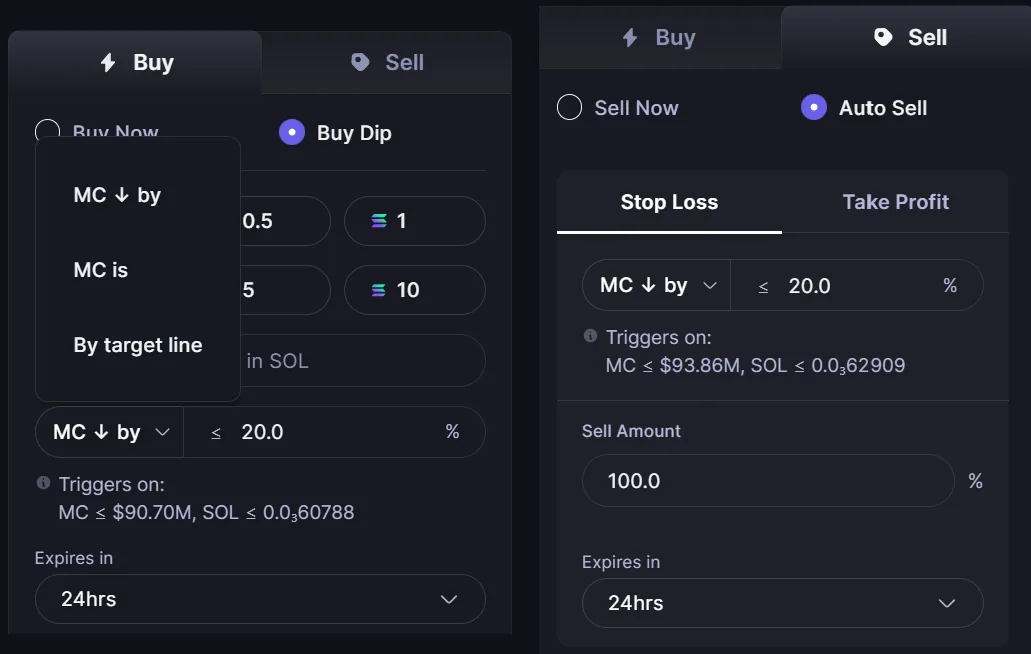
Source: Photon documentation, Limit Orders, used under fair use for educational purposes
The trigger menu has three entries:
- MC ↓ by sets the target as a percentage drop from the current market cap. Use it when you think in "buy it 20% lower" terms.
- MC is sets an exact market cap. Photon's documentation says the order fires "the moment when the market cap is equal to or less than your stated number."
- By target line puts a draggable line on the chart. You drag it to a level, and the order takes that level as its target.
Whichever you pick, the line under the field reads Triggers on: with the market cap and token price the target resolves to. The documentation notes that these figures update in real time, so the preview moves with the market until you create the order. Check it before you click. A percentage typed into the wrong field shows up there right away.
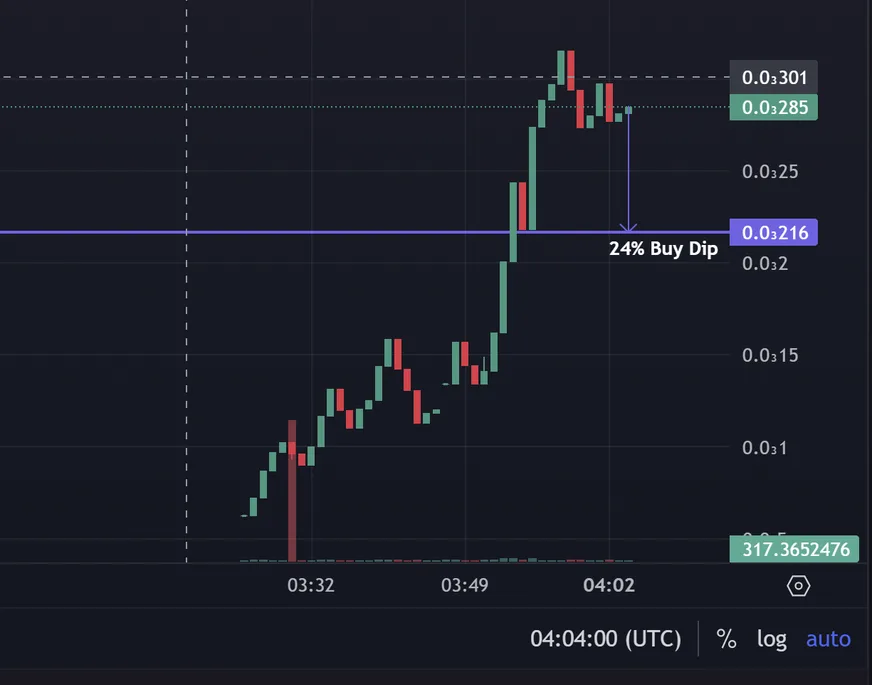
Source: Photon documentation, Limit Orders, used under fair use for educational purposes
Last, choose the expiry and click Create Order. The order then shows up under the Orders tab as active.
24, 48 or 72 hours
Photon's limit order page prints the expiry options as "24/28/72 hour". Its DCA page and the expiry menu in its own screenshots use 24, 48 and 72, so 28 looks like a typo. Either way, three days is the documented maximum.
How do you set a stop loss or take profit on Photon?
Open the Sell panel and switch from Sell Now to Auto Sell. Two tabs appear, Stop Loss and Take Profit. Both take the same three trigger methods as Buy Dip, plus a Sell Amount as a percentage of the tokens you hold, and an expiry.
Open the Sell panel
Switch from Sell Now to Auto Sell.
Pick Stop Loss or Take Profit
Both use MC down by, MC is, or By target line.
Set the trigger and read the preview
Check the market cap and price on the Triggers on line.
Set the sell amount
A percentage of your holdings. 100 means the whole position.
Choose an expiry and create the order
24, 48 or 72 hours, then Create Order.
Photon handles one case for you. If a stop loss and a take profit on the same token are both set to sell 100%, Photon cancels the other one as soon as either executes, so a filled take profit never leaves a stray stop loss behind. The documentation describes that only for orders selling the full position. With partial amounts, such as a take profit on half, check the Orders tab after each fill and delete anything you no longer want.
Set your exits before you need them
Open a token on Photon's Solana app, switch the Sell panel to Auto Sell, and read the Triggers on line before you create the order. Our link adds no surcharge and no discount.
Open PhotonWhere do you see and cancel your orders?
Every limit order lands under the Orders tab on the token page, next to Transactions, My Holdings, Top Traders and Holders. A toggle limits the list to the token you are viewing, and a Filter menu narrows it further.
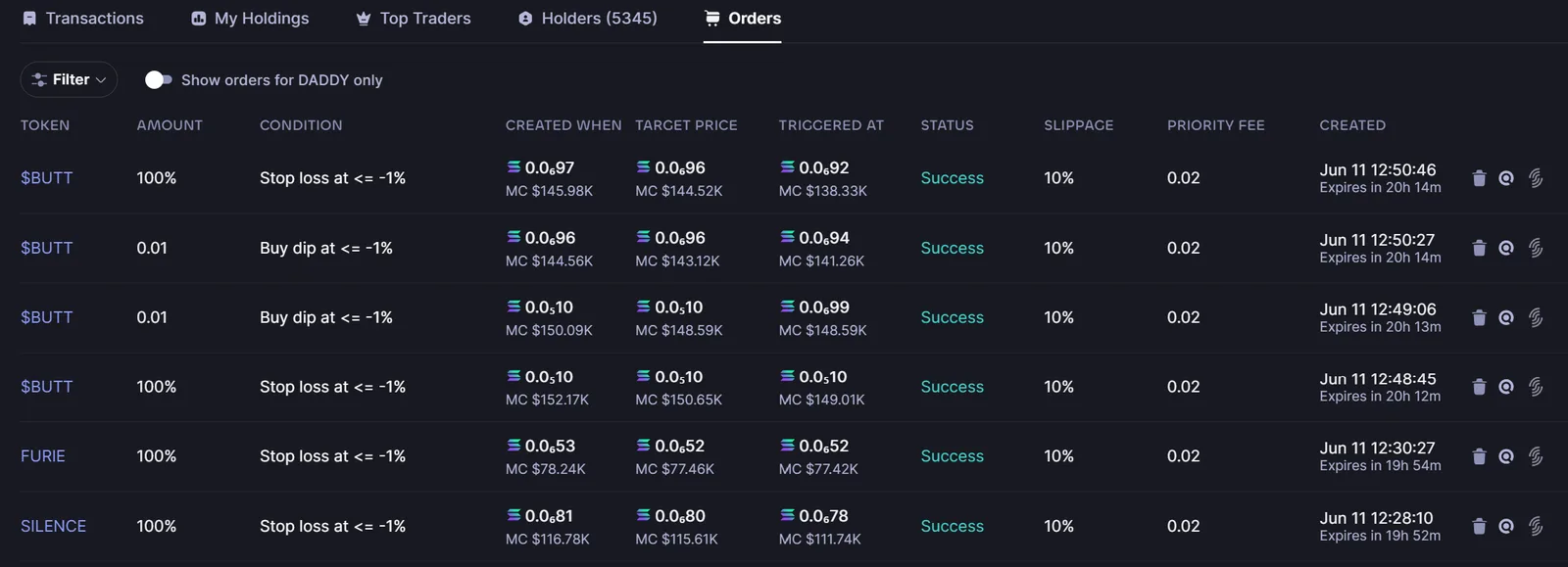
Source: Photon documentation, Limit Orders, used under fair use for educational purposes
Each row shows the token, the amount, the condition, the price and market cap when you created the order, the target, the price it triggered at, the status, the slippage, the priority fee, and the creation time with a countdown to expiry. The trash icon on the right deletes an order.
Compare the Target price and Triggered at columns in that screenshot. On several rows the two differ. The target is the condition. The triggered figure is where the market was when Photon acted on it. In a token that moves fast, that gap is normal, and the fill can land further away again depending on slippage.
How does DCA work on Photon?
DCA on Photon breaks one buy or sell into several smaller ones spread over time. Open a token page, click the Orders tab and choose DCA from the drop-down. There is also a Create DCA button on the DCA list. The form has a Buy side and a Sell side and asks for five things:
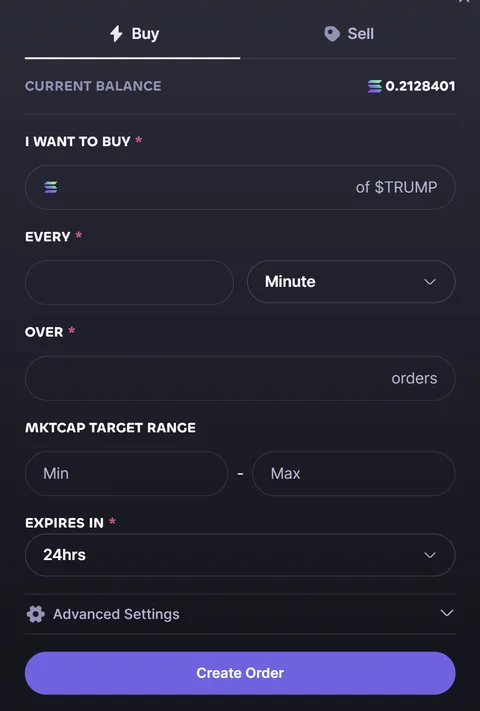
Source: Photon documentation, DCA Orders, used under fair use for educational purposes
- I want to buy / sell. A SOL amount on the Buy side, a percentage of your holdings on the Sell side.
- Every. The gap between orders, in minutes or hours.
- Over. The total number of orders.
- Mktcap target range. An optional minimum and maximum market cap.
- Expires in. 24, 48 or 72 hours.
Photon's documentation says you can set the priority fee and bribe for each DCA order. The form also has a collapsed Advanced Settings section, which the documentation does not describe, so open it and check what it holds before you create the order.
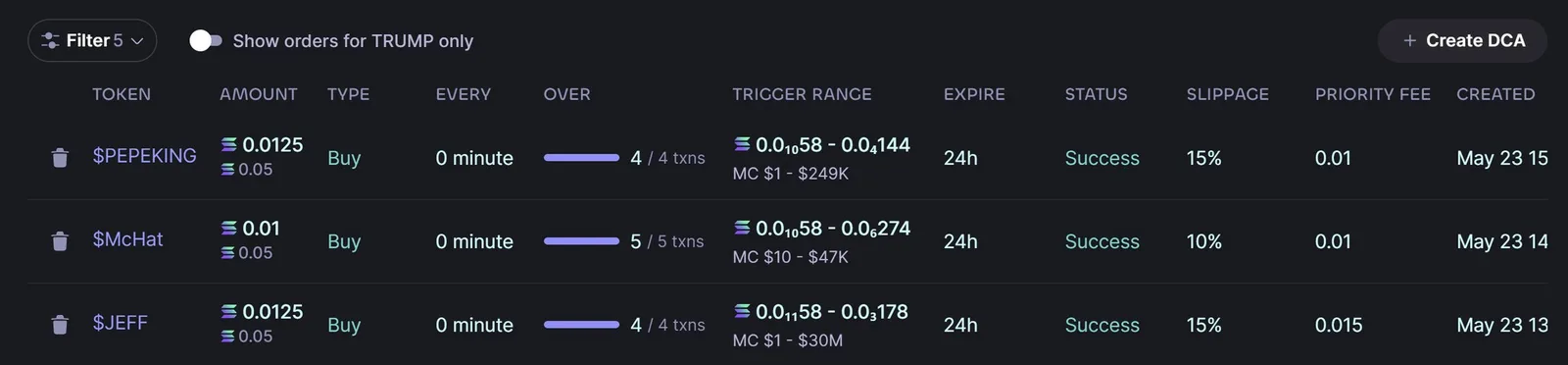
Source: Photon documentation, DCA Orders, used under fair use for educational purposes
The DCA list shows progress as a bar and a count, such as "4 / 4 txns", with the trigger range as both a price band and a market cap band. Each row shows two SOL figures. In every row of Photon's screenshot, the larger equals the smaller times the transaction count (0.0125 × 4 = 0.05), so they read as the size of each order and the total. Photon's text says only "the amount you wish to spend," so check which figure your own form expects before you submit a large order.
Photon's documentation does not say what happens to a DCA order when the market cap leaves your range: whether that order is skipped, waits for the price to come back, or still counts toward the total. If the range matters to you, watch the first few orders on the list before trusting it with size.
What does a limit or DCA order cost?
Photon charges a flat 1% on every buy and sell. A filled limit order is a buy or a sell, so it pays the same 1% as a market order. Nothing in the documentation adds a separate fee for using limit or DCA orders.
What changes with DCA is the number of transactions. Each order is its own Solana transaction, and each one pays:
- the Solana base network fee,
- the priority fee you set,
- the Jito bribe you set.
None of those three is a Photon fee, and the fees guide explains the difference. But they multiply with the order count. As a worked example, our own arithmetic rather than a Photon figure: with a 0.01 SOL priority fee, a single buy pays that fee once, while a DCA split into 5 orders pays 0.05 SOL in priority fees alone before any bribe. On a small position, that can cost more than the 1% itself. Photon's 1% is proportional, so splitting the trade does not change it.
All of these fees come out of the same wallet as the trade. An order that triggers when the wallet cannot cover them fails, so keep a SOL buffer, as the Photon wallet guide explains.
Know what each fill costs before it triggers
Photon's 1% is flat on every buy and sell, limit and DCA included. Set the priority fee and bribe on each order deliberately, then open the token on Photon.
Open PhotonWhy didn't my Photon limit order fill?
Photon's documentation names one cause directly. It says to set "a sufficiently high Priority + Bribe amount" because "if you set it too low, your limit order may not get in as early as possible." Each order carries its own priority fee and bribe, so an order created last week keeps last week's settings even if you have since changed your preset.
The other usual causes are the same as for any Photon trade:
- Slippage. If the price moves past your slippage tolerance between trigger and inclusion, the transaction fails. See slippage failures.
- Fees too low under congestion. See priority fee and bribe set too low.
- Not enough SOL. See not enough SOL for fees.
- The order expired. After 72 hours at most, it is gone. Check the status column before assuming it failed.
What can't Photon limit orders do?
These are gaps in Photon's documentation, not features we tested and found missing:
- Nothing lasts longer than 72 hours. A stop loss on a position you plan to hold for a week has to be created again at least twice.
- There is no trailing stop. A stop loss sits at a fixed market cap or price. It does not move up with the token.
- Triggers are market cap and price only. No order waits on volume, holder count or time of day.
- Photon does not say whether orders run while you are logged out. Do not assume either way with real size.
- A stop loss is not a guaranteed exit. On a thin pool, the trigger can fire and the sell still fill well below it, or fail on slippage. That is how the mechanism works on any Solana memecoin, not a Photon defect.
Photon's documentation for both features says it was last updated more than a year ago, and the screenshots are undated. The forms in the live app may have moved on since. The Photon safety guide covers the wider risks of handing exits to an automated order.
Sources
Every claim on this page was read from Photon's own documentation on 2026-11-01:
- Limit Orders: the three order types, the three trigger methods, the expiry options, the Orders tab columns, the 100% auto-cancel rule, the priority fee and bribe note, and the first three screenshots above.
- DCA Orders: where DCA is opened, the five fields, the per-order priority and bribe, deleting an order, and the last two screenshots above.
- Photon fees - SOL: the 1% on buys and sells.
The screenshots come from Photon's documentation, not from a funded account. The left and right panels in the first image are two separate documentation screenshots shown side by side. Where the documentation is silent, this page says so rather than guessing. More on how we work is on our methodology page.
Quoting a figure? Cite this pageShowHide
The steps on this page are free to quote. Copy the citation or the link below.
Plain-text citation
PhotonGuides. "Photon Limit Orders and DCA: How to Set Them Up (2026)." Published November 1, 2026, updated November 1, 2026. https://photonguides.com/guides/trading/photon-limit-orders-dcaHTML link
<a href="https://photonguides.com/guides/trading/photon-limit-orders-dca">Photon Limit Orders and DCA: How to Set Them Up (2026), PhotonGuides</a>The order types, trigger methods, 24/48/72-hour expiries and DCA fields come from Photon's own documentation. The DCA fee example is this site's arithmetic. Sections can be deep-linked: #how-do-you-set-a-buy-dip-limit-order, #how-do-you-set-a-stop-loss-or-take-profit-on-photon, #how-does-dca-work-on-photon and #what-does-a-limit-or-dca-order-cost. They were read from the Photon Limit Orders and DCA Orders documentation on . Photon can change its order forms and documentation at any time, so check the live app before relying on a specific value. Our methodology page sets out how every claim on this site is sourced.
You may quote this page with attribution and a link to https://photonguides.com/guides/trading/photon-limit-orders-dca.
Frequently Asked Questions
On every token page. In the Buy panel, switch from Buy Now to Buy Dip for a limit buy. In the Sell panel, switch to Auto Sell and choose Stop Loss or Take Profit. Active and finished orders are listed under the Orders tab on the same page.
Open a token page, click the Orders tab, and choose DCA from the drop-down. Fill in the amount (SOL for a buy, a percentage for a sell), the interval in minutes or hours, the number of orders, an optional market cap range, and an expiry of 24, 48 or 72 hours, then create the order.
Photon's documentation offers expiries of 24, 48 or 72 hours for limit orders and the same three for DCA orders. No longer option and no good-until-cancelled setting is documented, so an order you still want after three days has to be created again.
Photon's fee is a flat 1 percent of every buy and sell, so a filled limit order pays the same rate as a market order. A DCA order splits one trade into several transactions, and each one pays its own Solana network fee, priority fee and bribe. Those go to the network and validators, not to Photon, but they add up across many small orders.
If a stop loss and a take profit are both set to sell 100 percent of your tokens, Photon cancels the other order automatically as soon as one of them executes. Photon's documentation describes that behavior only for orders selling the full position, so check the Orders tab yourself after a partial sell.
Independent: PhotonGuides is an independent reference published by Concept211. It is not affiliated with, produced by, reviewed by, endorsed by, or connected to Photon or Tiny Astro Inc., the company named as "the Company" in Photon's own Terms of Use. "Photon" and any related marks belong to their owner and are used here only to identify the product this site writes about. Our only commercial relationship with that product is a publicly available referral link, which gives the reader no discount and costs them nothing.
Disclaimer: Nothing on this site is financial, legal, tax or investment advice, and nothing here is a recommendation to buy or sell any token. Trading Solana tokens, particularly newly launched ones, carries a substantial risk of total loss. Where this site describes what a document says or what a product does, that is an observation and not a conclusion about your obligations. Consult a qualified professional in your own jurisdiction before acting. This site contains referral links, see our full disclaimer for details.
Ready to Start Trading?
Photon builds a Solana wallet in the browser, shows you the private key once, and charges a flat 1% on every buy and every sell. Our referral link costs you nothing extra, because there is no discount to give.
Open Photon